User Productivity Indicators: The Most Effective Way to Measure Employee Performance
In today's competitive business world, one of the most important factors for businesses to grow and achieve their goals is employee productivity. User productivity indicators are fundamental metrics that allow you to analyze how effectively your teams utilize their working hours. Unlike traditional methods, thanks to modern computer monitoring and activity tracking systems, it is now much easier to transparently measure how much time personnel spend on which tasks during the day, week, or month.
Why are Productivity Indicators Important for Businesses?
Not all the time an employee spends in front of the screen may be dedicated to productive tasks. In order to properly manage your business's resources, you need to identify invisible time losses. Thanks to advanced productivity indicators:
- Real-Time Analysis: You can see which applications or websites your employees spend time on instantly.
- Cost Optimization: By identifying unproductive processes, you prevent time and budget waste.
- Fair Performance Evaluation: With reports based on concrete data, you can easily distinguish the most productive employees in your team and make promotion or bonus processes transparent.
Which User Productivity Metrics Should Be Tracked?
There are some fundamental indicators that need to be tracked in order to see how valuable and productive the work your employees produce for you is:
- Productive and Unproductive Application Usage: The software used and websites visited by employees during working hours should be classified according to their relevance to the job description. Within the framework of the rules set by your institution, time spent on social media or entertainment platforms is reported as "unproductive", while time spent on job-related CRM, design, or office programs is reported as "productive".
- Active Work and Idle Times: Just because a computer is on does not mean the employee is producing work at that moment. "Idle times" spent without touching the keyboard or mouse can be measured in detail, minute by minute, through user productivity screens. Thus, active working hours are clearly revealed.
- Task Focus Time and Interruptions: The fact that employees constantly switch between different windows often indicates a loss of focus. The uninterrupted focus time spent on a specific application is a crucial productivity indicator that directly reflects the quality and speed of the work.
Customized Solutions with Personalized Productivity Reporting
Every company's operation, department structure, and definition of productivity are different. Advanced user tracking software creates special productivity scores according to the rules you define. For example, while social media usage may be considered "productive" for a digital marketing staff member, it can be labeled as "unproductive" for the accounting department.
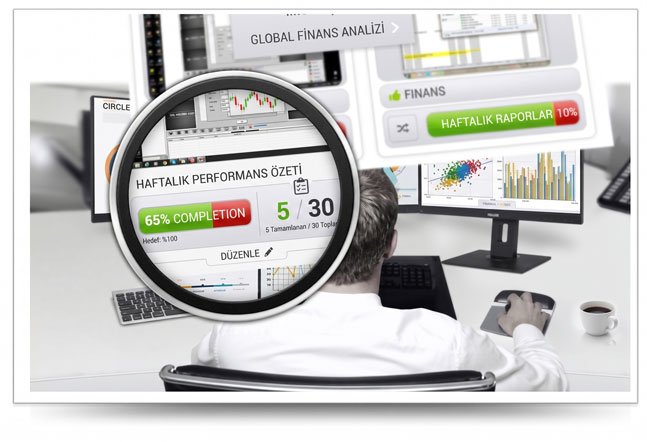
Thanks to this flexible structure, visual graphs and reports created on a daily, weekly, and monthly basis allow managers to see the performance summary of the entire team at a single glance. User productivity screens save your business from the burden of micromanagement and help you take completely data-driven and strategic steps.
You Cannot Manage a Process You Cannot Measure
Increasing employee productivity not only speeds up business processes but also balances internal motivation, sense of fairness, and discipline. With the right user productivity indicators and detailed activity logs, you can objectively evaluate your team's performance and always take your business one step forward.
How does Bosseye software solve all of this?
With its special algorithms, Bosseye analyzes predefined words and phrases (based on criteria set by the administrator) on all PCs in cloud servers and, upon the administrator's instructions, calculates which applications or activities are efficient and converts them into understandable short summary reports. Thus, the administrator does not need to monitor screens all day or look at old records.
- How will the administrator know what is efficient and what is not? From the moment the software is first installed, it records every action performed on the computer. For example; the file named x was copied from here and pasted there, the content on website x was read or the form was filled out, the song x was listened to on YouTube for this many times, the series with the name x was watched for this many times, etc. It counts all activities according to their usage and compiles them into a report. By looking at these reports, the administrator marks which ones are efficient or inefficient in the software's control panel. Thus, the software now prepares productivity reports according to the criteria set by the administrator.
- Marking all usage as efficient or inefficient on an application basis:In the Bosseye application's administrator panel, you can mark any executable file or the entire usage of an application as efficient or inefficient. For example, from the moment an accounting employee shows the path to the executable file of an accounting program, that accounting program is considered efficient or inefficient. Let's say there is a browser named x, and this browser is generally used for inefficient operations. However, occasionally, it is necessary to use websites that are beneficial to the company. In this case, the administrator can mark the x browser as inefficient and say, "Mark it as efficient if xxxx content is used in this browser."
- Calculating waiting time, which is not available in other software:Bosseye can also present the times when the mouse and keyboard are not used in a separate report. For example, a user may have opened an efficient application on the screen and then get up from their desk to spend time elsewhere. In this case, Bosseye marks the 5 minutes of inactivity (mouse and keyboard unused) as idle time. Yes, the PC is on and there is a productive application on the screen, but the user is not at the PC. Or the user might be watching a series or movie on their mobile phone.